sample - C++ Client/Server
This repository provides a complete example of a client-server implementation in C++ designed for deployment on the AosEdge platform.
In this project, you will learn how to:
- download and install the AOS SDK
- set up your development environment
- build two separate services (client and server)
- establish communication between the services
- create and configure services in AosCloud
- sign and upload your services for deployment
This example serves as a solid starting point for developing and deploying custom C++-based Aos services on the AosEdge platform. You can explore the example by checking out the source code.
Prerequisites
- Target unit: a supported platform (VirtualBox or Raspberry Pi).
- AosCloud account: an SP user account for AosCloud. See AosEdge dictionary for user types and Get access page for login help.
- Tools: AosCore SDK, CMake, Bash, Wget, Python and a virtual environment (
venv) are installed. - Prepare SDK: Follow the detailed instructions on how to get the SDK from the Get SDK.
Prepare unit
Before proceeding, make sure you:
- download AOS SDK.
- install AOS SDK.
For detailed instructions on how to set this up, please refer to the following guide. Please see Download SDK and Install and set up SDK chapters.
Compile service example with CMake
The source code of the example you can download.
mkdir -p build
cd build
cmake ..
make
Compile service example manually
The source code of the example you can download.
VirtualBox environment
x86_64-aosvm-linux-g++ --sysroot=/opt/aos-vm-dev/${AOS_RELEASE_VERSION}/sysroots/core2-64-aosvm-linux main.cpp -o client-server
Raspberry Pi environment
aarch64-aos-linux-g++ --sysroot=/opt/aos-core-sdk/raspberrypi5/${AOS_RELEASE_VERSION}/sysroots/cortexa76-aos-linux/ main.cpp -o client-server
Prepare client-server for upload
Before signing and uploading both services to AosCloud, make sure to prepare each service by organizing the compiled binary and updating its configuration file with the service UUID.
Server
Open the service configuration file ./meta/config.yaml and update the service_id field with the UUID you copied from the Service Detail screen in AosCloud:
cd server
nano ./meta/config.yaml
Example config.yaml:
service_id: '<YOUR_SERVICE_UUID>'
configuration:
   hostname: '<ENDPOINT>'
   exposedPorts:
      - '<PORT>'
Replace the placeholders in the file with the appropriate values:
Replace <YOUR_SERVICE_UUID> with the UUID you saved earlier.
Replace <ENDPOINT> with the endpoint used for the connection.
Replace <PORT> with the port number used for the connection.
Client
Open the service configuration file ./meta/config.yaml and update the service_id field with the UUID you copied from the Service Detail screen in AosCloud:
cd client
nano ./meta/config.yaml
Example config.yaml:
service_id: '<YOUR_SERVICE_UUID>'
Replace <YOUR_SERVICE_UUID> with the UUID saved earlier. Save and close the file.
Sign and upload service version
Use the aos-signer go tool to sign and upload your service to AosCloud.
In the service directory, run:
Server
cd server
~/.aos/venv/bin/python3 -m aos_signer go
Client
cd client
~/.aos/venv/bin/python3 -m aos_signer go
Expected output:
Starting SERVICE SIGNING process...
Starting CONFIG VALIDATION process...
Validating config...           VALID
Copying application...         DONE
Copying configuration...       DONE
Copying default state...       SKIP
Creating archive...            DONE
Sing package...       DONE
Creating service package...            DONE
*
Starting SERVICE UPLOAD process...
Starting CONFIG VALIDATION process...
Validating config...           VALID
Uploading...                   DONE
On success, the output ends with an Uploaded message. Verify the service details on the Services section of AosCloud.
Link unit and service together
Once your service is created and uploaded to the cloud, the next essential step is to link it with your unit.
You can accomplish this by creating a subject, which acts as the bridge between your unit and the service.
For detailed instructions on how to set this up, please refer to the following guide.
Please see Creating subject,
Access subject,
Assign unit to subject,
Assign service to subject chapters.
Approve service
- Go to Validation Batches.
- Select your service.
- Click Approve to Server and Client server to confirm the service.
At this stage, the servicies are applied to our environment.
For detailed instructions on how to set this up, please refer to the following guide.
Validate result of the service
-
For detailed instructions on working with logs, please refer to the Validate result of service chapter.
-
Open the log files in a text editor and search for the message
"[AOS Client Service] Response status: 200 OK". -
Go to Unints and choose your unit and check status on dashboard
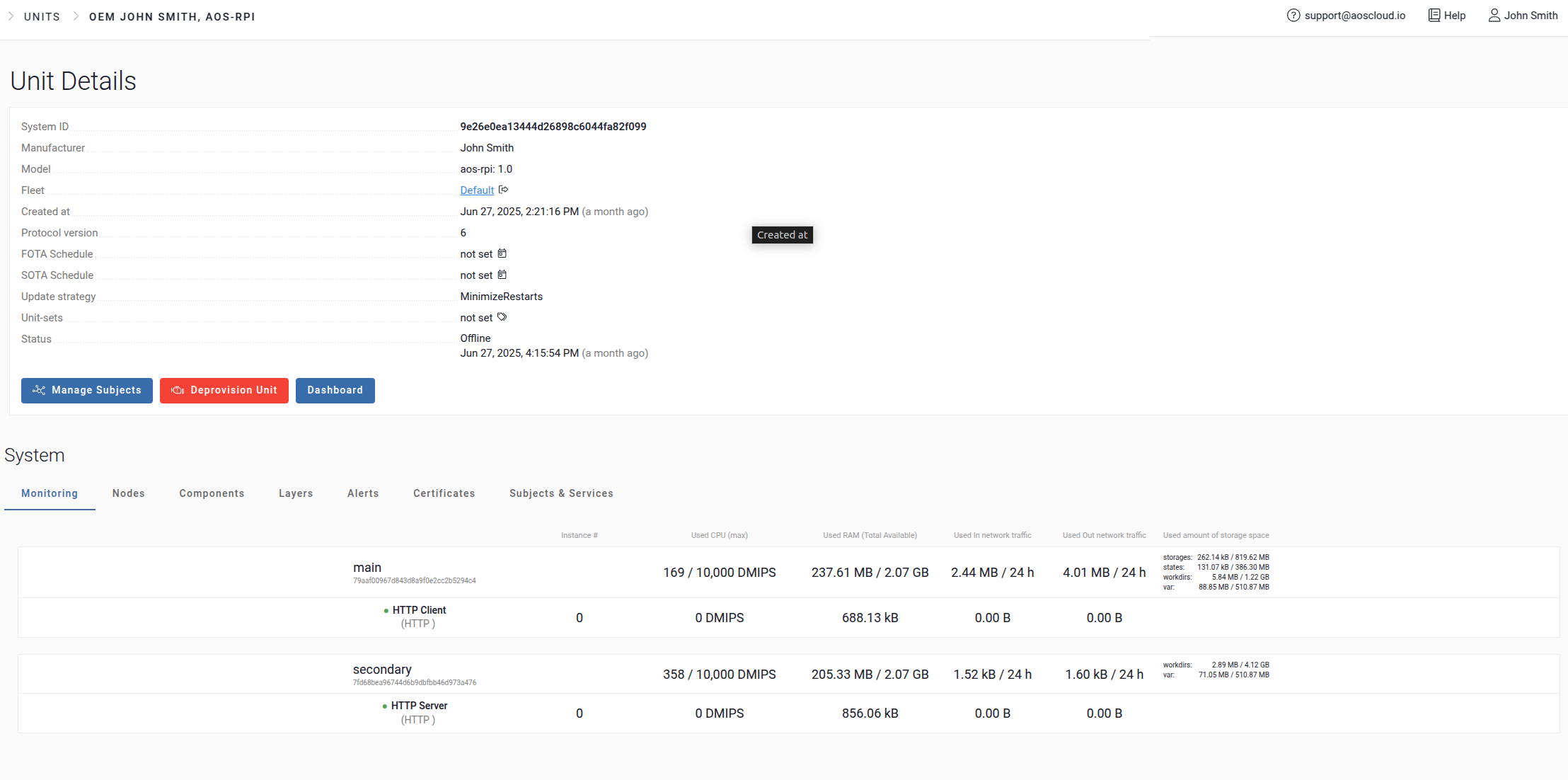
If the message is found, the service is working correctly.