Schedule updates (Campaign)
This chapter explains how to correctly use the Schedules feature and describes its main purpose.
The Schedules mechanism enables automated management of SOTA and FOTA updates.
It allows you to set rules and priorities for how and when updates should be applied across your Units.
Create Schedule
- Navigate to the Schedules section.
- Click the + button to create a new schedule.
- Fill in the required schedule properties.
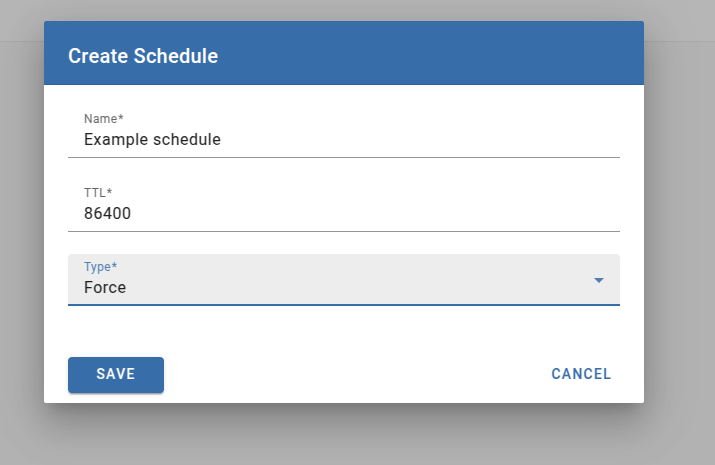
Schedule parameters
-
Name — A unique identifier for the schedule.
-
TTL (Time to Live) — The time window within which the unit must come online. If the unit remains offline beyond the specified TTL, the update will not be applied.
-
Type — Defines the update strategy:
- Force — The unit will be updated automatically upon startup.
- Trigger — The update will be applied when a specific trigger is emitted by the client. You are responsible for implementing the client-side logic that emits this trigger in accordance with your business logic.
- Timetable — The update will be executed according to a predefined schedule.
Assign Schedule to Unit
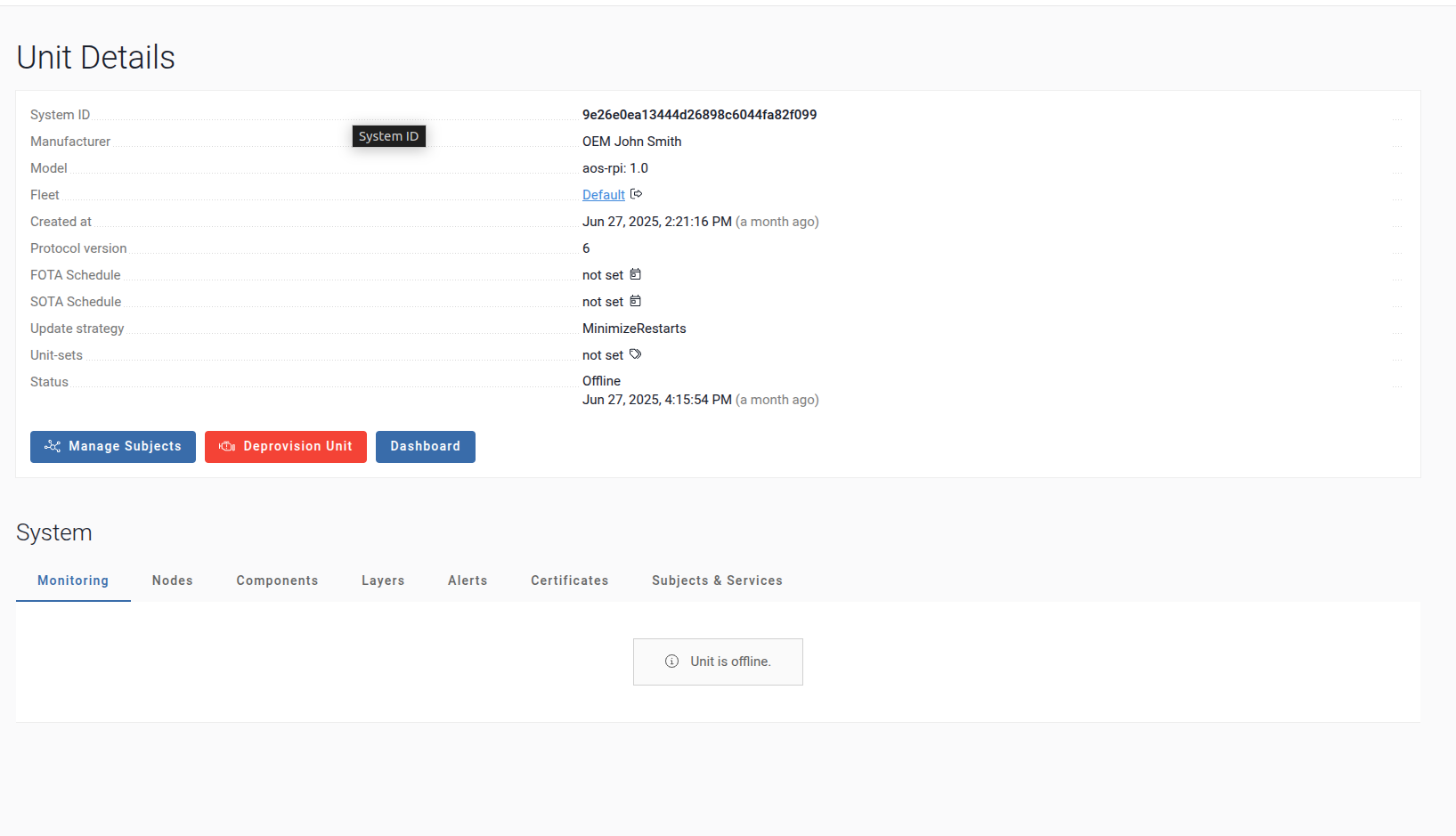
- Go to the Units section.
- Select the Unit you want to assign the schedule to.
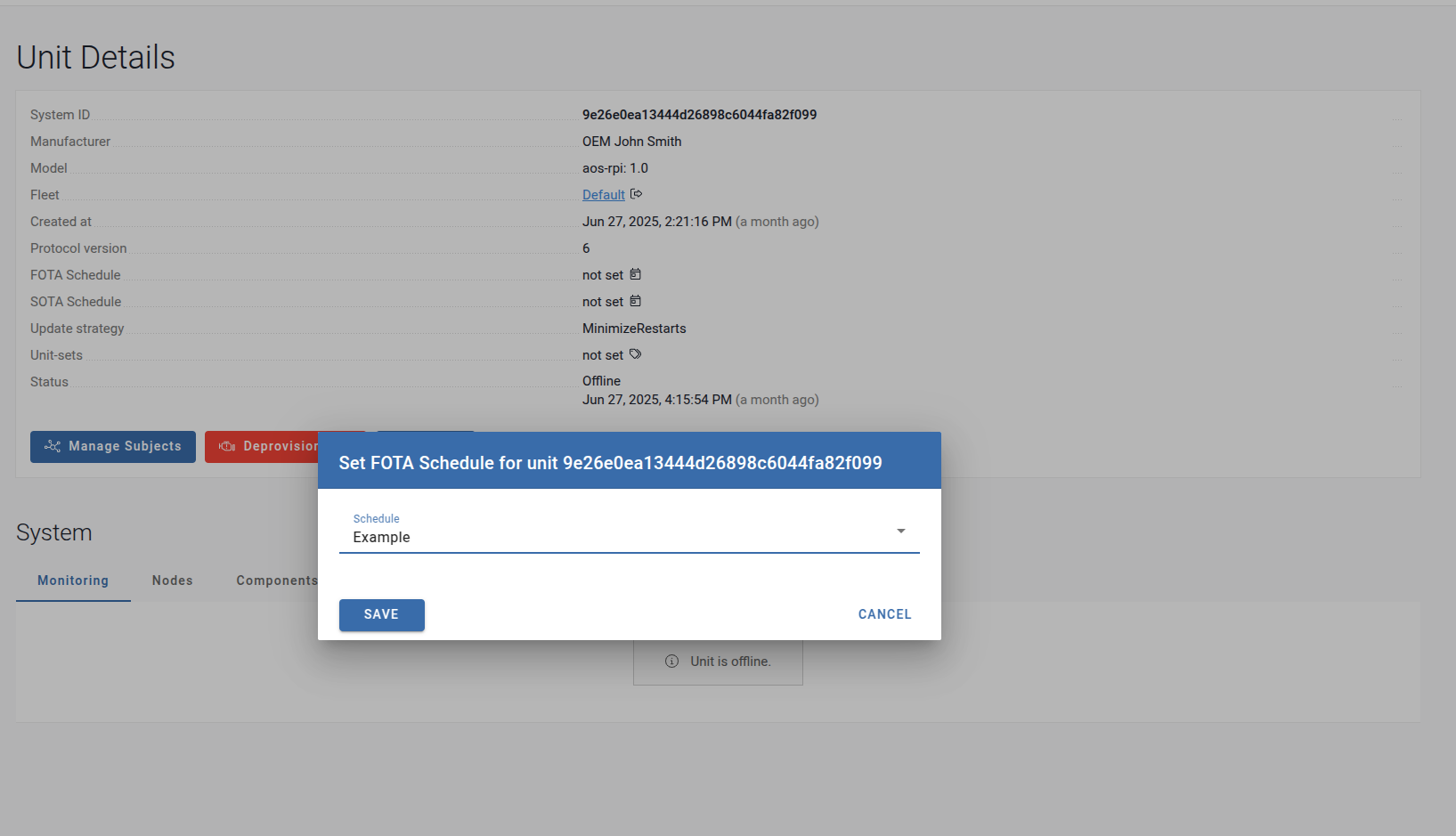
- Choose either the SOTA & FOTA schedule type.
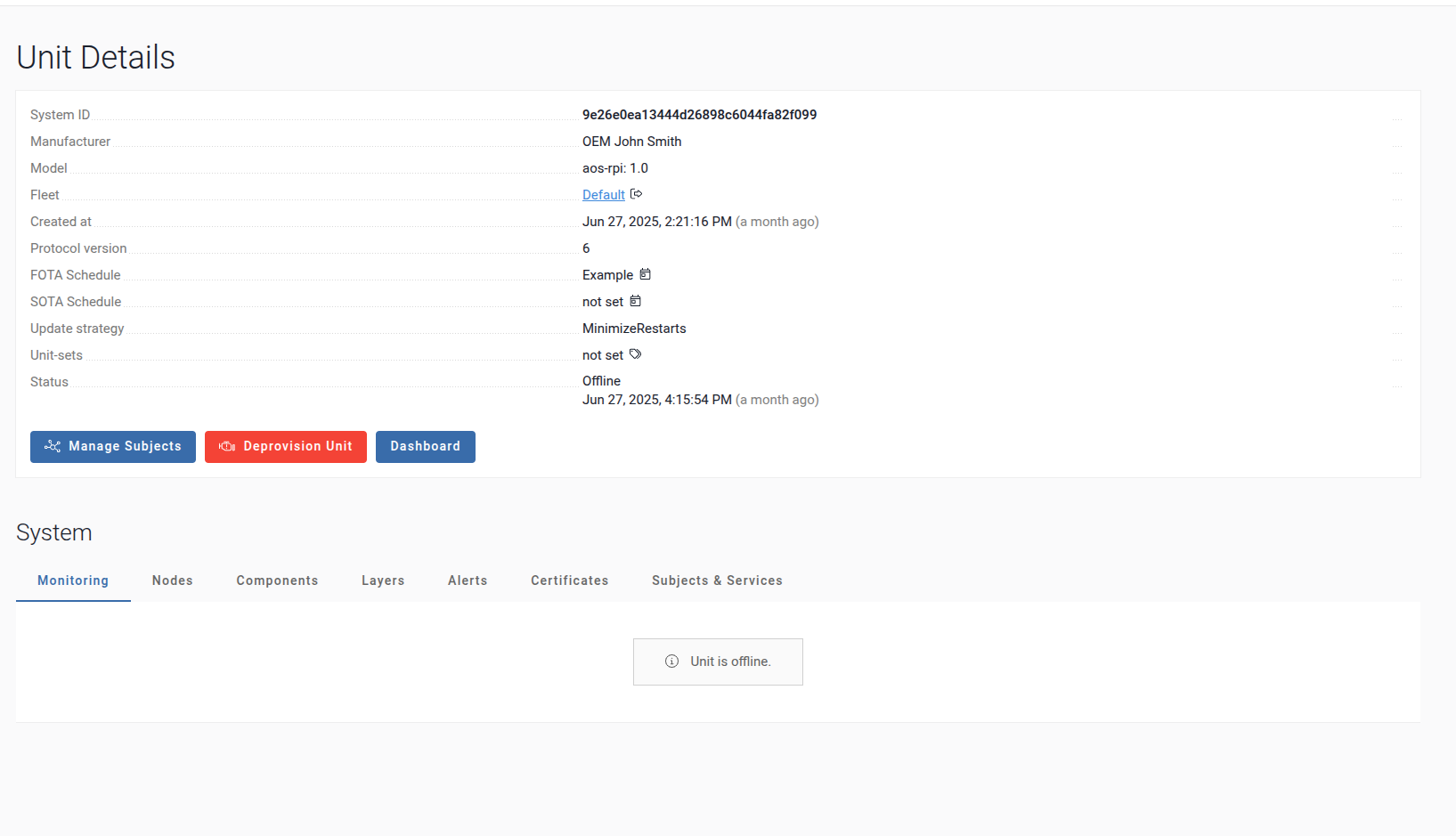
- Click the schedule icon to link it.
Execute Schedule
Once assigned, Unit and will automatically apply the update based on the timing specified with the Schdule parameters.